Inspect Slides And Preview Tiles
Overview
Problem solved: verify that a slide opens correctly, confirm the working resolution you want, and save a few preview regions before you launch a larger tiling job.
Use this example when:
- you are onboarding a new slide source,
- you want to sanity-check
mppor level choice visually, - or you need to confirm that tiles, masks, or annotations will line up at the expected scale.
Why This Approach
OpenSlide gives you direct access to slide pyramid metadata and patch reads.
This is the simplest way to inspect a single slide before you commit to a distributed Ray pipeline.
Bundled example input
The figure below shows the intended inspection workflow: a slide thumbnail for context, one larger preview region, and one saved tile for close inspection.
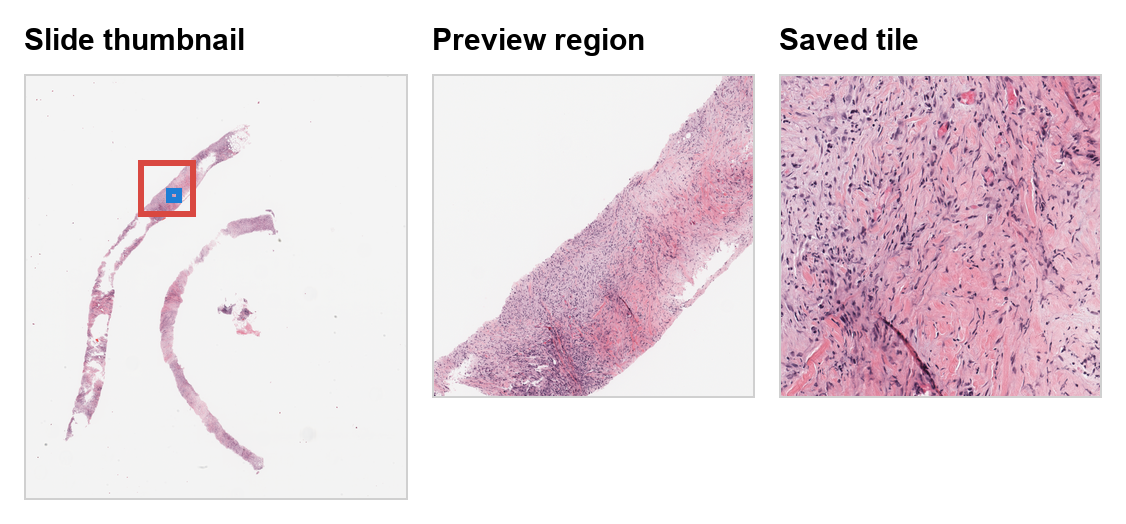 The slide thumbnail marks one larger preview region in red and one saved tile in blue.
Example
from pathlib import Path

from PIL import Image

from ratiopath.openslide import OpenSlide

output_dir = Path("preview")
output_dir.mkdir(exist_ok=True)

with OpenSlide("slide.svs") as slide:
    level = slide.closest_level(0.5)
    resolution = slide.slide_resolution(level)
    extent = slide.level_dimensions[level]

    print(f"Selected level: {level}")
    print(f"Resolution: {resolution}")
    print(f"Extent: {extent}")

    region = slide.read_region_relative(
        location=(0, 0),
        level=level,
        size=(2048, 2048),
    ).convert("RGB")
    region.save(output_dir / "region_preview.png")

    tile = slide.read_tile(
        x=1024,
        y=1024,
        extent_x=512,
        extent_y=512,
        level=level,
    )
    Image.fromarray(tile).save(output_dir / "tile_preview.png")
Example output
Selected level: 2
Resolution: (0.5, 0.5)
Extent: (16384, 12288)
Under the hood
closest_level compares your target physical resolution with the available pyramid levels and picks the nearest one.
read_region_relative and read_tile then interpret coordinates in that chosen level's coordinate system.
This is important for debugging because it lets you reason in the same working space that later tiling code will use. If a preview looks wrong here, the larger distributed pipeline will be wrong too.
What To Check
- whether the selected level matches the physical scale you expect,
- whether bright background and tissue look sensible at that scale,
- whether the saved tile boundaries correspond to the intended region,
- and whether any overlay or annotation source uses the same slide orientation.